


Quick answer
A red “Deceptive site ahead” warning means Google Safe Browsing found phishing or other deceptive content on your site. On WordPress, that almost always means the site was hacked and someone planted pages you didn’t write.
The fix is to find and remove the bad files and the way in, lock the site down, then ask Google to review it in Search Console. The warning only goes once that review passes.
Few things empty a website faster than a full red screen in front of it. Visitors see a warning, not your business, and most of them leave.
The good news: the warning is not permanent. Google lifts it once the site is clean and a review confirms it.
I’m Hassan. Our team has been fixing hacked WordPress sites since 2011, working from Pakistan for owners in the US, UK, EU and Australia. This guide covers what the warning means, the checks we run first and how to get it removed properly.
Signs you have this warning
Some of these show up before a customer ever tells you:
- A red full-page warning in Chrome, Firefox or Safari when you open your own site in a private window.
- An email from Search Console about a security issue, social engineering or malware on your site.
- A sudden drop in traffic and enquiries, with no change on your side.
- Labels in Google results such as “This site may be hacked” or “This site may harm your computer”.
- Warnings from antivirus tools such as Norton, McAfee or Microsoft Defender when visitors open your pages.
- Odd files or folders on the server, such as a fake bank or webmail login page inside
wp-content.
Tip
Test in a private window while logged out. Some malware hides from logged-in admins, so your normal browser may look fine while visitors get blocked.
What causes it, in plain English
Google runs a service called Safe Browsing. It scans the web for pages that phish, spread malware or push unwanted software, and shares that list with browsers.
Chrome uses it, and so do Firefox and Safari. When your domain or a page on it lands on the list, those browsers warn visitors before the page loads.

On a WordPress site, the bad content is usually planted by an attacker. The common ways in are an outdated plugin or theme, a weak or reused password, or a pirated (“nulled”) premium plugin.
What gets a site flagged
- Phishing pages. Fake logins for banks, email, delivery firms or payment services, hidden in a sub-folder. On online stores, card theft more often happens on the real checkout through a WooCommerce checkout skimmer.
- Malware. Scripts that try to install software or redirect visitors to sites that do.
- Unwanted software. Downloads or pop-ups pushing programs that change browser settings.
- Deceptive redirects. Code that sends some visitors to fake prize, tech support or “update your browser” pages.
Now and then the cause sits outside your files, such as a third-party script or ad that got flagged. The checks below show which pages Google found, which tells you where to start.
What it looks like in the browser and Google
The browser warning is a full red page shown before your site loads. In Chrome the heading reads “Deceptive site ahead” or, in newer versions, “Dangerous site”. Other browsers use similar wording.
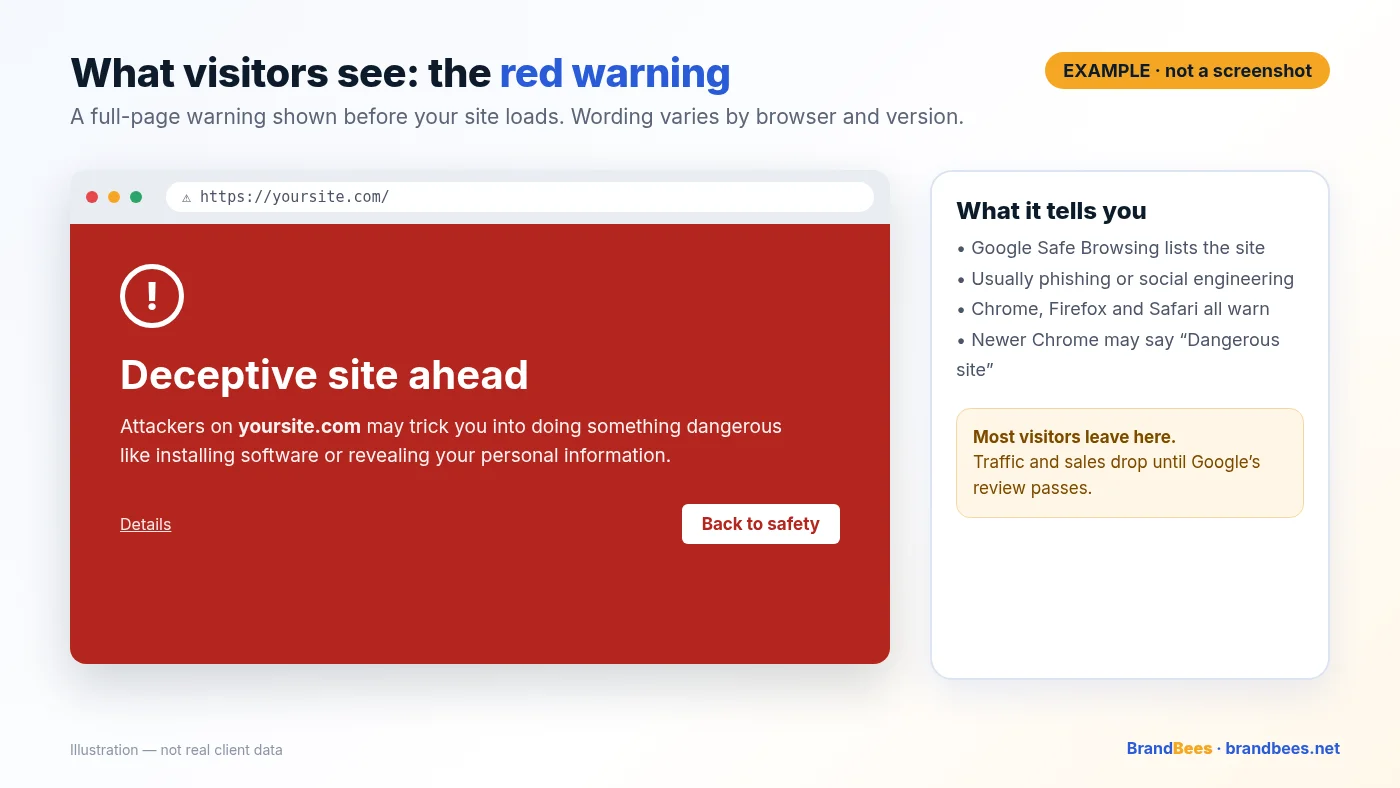
The picture above is an illustration with a placeholder domain, not a screenshot. Wording and layout change between browsers and versions.

In the browser
- “Deceptive site ahead” or “Dangerous site” usually means phishing or social engineering.
- “The site ahead contains malware” means Google found code that may harm visitors’ devices.
- “The site ahead contains harmful programs” points to unwanted software.
In Google search
- “This site may be hacked” under your result usually means spam content was added by an attacker.
- “This site may harm your computer” usually means Google detected malware.
- Clicking such a result may show a Google warning page before your site.
Warning
Don’t click “visit this unsafe site” on a work computer to see what happens. Inspect the server files instead, and treat any login form you find as hostile.
Safe checks you can run
These checks only read. They don’t change your site. Take a full backup before you go further anyway.

Google Safe Browsing site status
Open Google’s Transparency Report, go to the Safe Browsing site status tool and enter your domain. It shows whether Google currently lists the site as unsafe and, often, the type of problem.
Search Console Security issues report
In Google Search Console, open Security & Manual Actions → Security issues. It names the issue, such as social engineering or malware, and lists sample URLs. Those URLs are your starting point.
Look at the server
With your host’s help, or over SSH, look for recently changed files and PHP or HTML where it shouldn’t be.
# Read-only: run from the WordPress root
find . -type f -mtime -14 -not -path "./wp-content/cache/*" | head -50
find wp-content/uploads -name "*.php"
find . -iname "*login*.html" -o -iname "*verify*.php" | head
wp core verify-checksums
wp plugin verify-checksums --all
wp user list --role=administrator --fields=ID,user_login,user_registered
Tip
A match is a lead, not a verdict. Write down what you find and where before deleting anything, so you can trace the way in later.
Cleanup steps, in order
Order matters. If you ask Google for a review before the site is clean, the review fails and the warning stays.
Back up and record
Copy files and database. Save the Search Console sample URLs.
Find the flagged content
Locate the phishing pages, scripts or redirects behind each sample URL.
Find the way in
Check outdated plugins and themes, users and recently changed files.
Remove malware and backdoors
Delete planted files and clean injected code in files and the database.
Reinstall clean copies
Core, themes and plugins from trusted sources only.
Reset access
New passwords, fresh salts and keys, unknown admins removed.
Request a Google review
Only after every sample URL is clean or gone.
Monitor
Watch files, users and Search Console for weeks after.

If you’d rather not do this yourself, our WordPress malware removal service covers the cleanup, the hardening and the review request.
Request a review in Search Console
Once the site is clean, ask Google to check it again. You need to be a verified owner of the site in Search Console.

- Open the report. Go to Security & Manual Actions → Security issues.
- Check every sample URL. Each should now return a clean page or a 404/410. Use URL Inspection to confirm what Google gets.
- Tick the box. Select “I have fixed these issues”.
- Request a review. Click Request review and describe what you removed and how you closed the way in. Short and specific works best.
- Wait for the result. Google emails you and updates the report. If it is rejected, read the reason, fix what remains and request again.
Review times vary. Google’s own guidance suggests about a day for phishing, a few days for malware and several weeks for hacked spam. Nobody can promise a date, and we won’t either.
Warning
A rejected review isn’t the end, but repeated failed requests can slow things down. Make sure the site is properly clean before you ask.
Other blacklists: Norton, McAfee and Microsoft
Google isn’t the only list. Antivirus and browser vendors keep their own, and they don’t always update at the same speed.
- Norton Safe Web. Check your site rating and request a re-evaluation as the site owner.
- McAfee. Check the site’s categorisation and submit a review request if it is still marked risky.
- Microsoft Defender SmartScreen. Used by Edge and Windows. Site owners can report a site as safe for review.
Do these only after the cleanup. A vendor that rechecks a still-infected site will simply confirm the listing.
Risks of fixing it yourself
If you know your server well, you can do much of this. The risk is a cleanup that looks finished but isn’t.
- Backdoor left behind. The attacker comes back within days and the warning returns. How to find a WordPress backdoor or hidden admin is covered in its own guide.
- Hidden copies missed. Phishing kits often sit in more than one folder, and one leftover page is enough to fail the review.
- Breaking the site. Blind edits to theme files,
.htaccessor the database can take it offline. - Reviews requested too early. A failed review costs time while traffic stays blocked.
Get it fixed: fixed prices
Every plan is cleaned within 24 hours of receiving working access. Emergency fixes start from $149.
- Basic — $149. Malware and backdoor removal with basic hardening. 30-day reinfection warranty.
- Full Recovery — $249. Deep cleanup plus the Google review request. 60-day reinfection warranty.
- Emergency — $349. Work starts within 4 hours of access. 60-day reinfection warranty.
Red warning in front of your site?
Fixed-price malware cleanup from $149, with the Google review request handled for you on Full Recovery. Not sure what Google found? Start with a free malware check.
Related reading
- WordPress site redirecting to spam? Signs, causes and the fix
- WordPress pharma hack: signs, cause and how to fix it
- WordPress backdoor and hidden admin users: how to spot and remove them
- WooCommerce checkout skimmer: how to spot card-stealing malware and remove it
- Japanese keyword hack: signs, cause and how to fix it
- How to recover SEO rankings after a hacked website
- How much does WordPress malware removal cost?
- Free WordPress security scanner: check your site in a minute
Frequently asked questions
What does “Deceptive site ahead” mean on my WordPress site?
It means Google Safe Browsing has flagged your site for social engineering, usually phishing. Google found pages that try to trick visitors into entering passwords, card details or installing software, so Chrome and other browsers show a red warning before the site loads.
Why did Google flag my site when I didn’t add anything bad?
In most cases the site was hacked. An attacker uploaded a phishing page, a fake login form or a malicious redirect, often in a folder you never look at. Less often, a flagged third-party script or a link to a flagged download triggers it.
How do I check if my site is on the Google blacklist?
Look up your domain on Google’s Safe Browsing site status page in the Transparency Report. If you have Search Console, open Security issues under Security and Manual Actions. It lists the problem type and sample URLs.
Is “Deceptive site ahead” the same as “This site may be hacked”?
No. The red browser warning comes from Google Safe Browsing and blocks visitors at the door. “This site may be hacked” is a label in Google search results, usually for spam content added by an attacker. A hacked site can get either one, or both.
Can I remove the warning without cleaning the site?
No. Google only lifts the warning after a review finds the problem gone. Requesting a review while the phishing page or malware is still there usually gets it rejected, and repeat requests can take longer.
How long does a Google review take after I request it?
It varies. Google’s guidance suggests phishing reviews can take about a day, malware reviews a few days and hacked spam reviews several weeks. Nobody outside Google can guarantee a timeline.
Do I need Search Console to get the warning removed?
It is the proper route. You need to verify ownership of the site in Search Console to see the Security issues report and request a review. Without it, you can only wait for Google to recrawl the site.
Will the warning hurt my SEO and sales?
Yes, while it is live. Most visitors won’t click past a red warning, so traffic, leads and sales drop sharply. Once the review passes and the warning is lifted, traffic usually recovers as normal.
What about Norton, McAfee or Microsoft warnings?
They run their own lists. After the cleanup, check your domain with Norton Safe Web, McAfee and Microsoft’s site reporting tools, and request a re-evaluation with each vendor that still flags it.
How much does it cost to fix a deceptive site warning?
BrandBees charges $149 for a Basic cleanup with a 30-day reinfection warranty, and $249 for Full Recovery or $349 for Emergency, both with a 60-day reinfection warranty. Full Recovery includes the Google review request.
Want the warning gone properly?
WordPress experts since 2011. Cleanup from $149, cleaned within 24 hours of access, with a 60-day reinfection warranty on the $249 and $349 plans.
Free PDF
WordPress Security Checklist
The same checks we run on client sites, written in plain English. Work through it in an afternoon.
- Logins, updates, backups and hosting, step by step
- A 10-minute self-test you can run today
- What to do if you think you’ve been hacked
