Executive summary
BrandBees – Delivery & Pickup Scheduling (free) adds a delivery and pickup scheduling layer to WooCommerce, including delivery/pickup enablement, configurable availability, holidays, cutoff time behavior, checkout labels, and estimated delivery messaging.
BrandBees Pro builds on that foundation and focuses on operational accuracy: preparation time rules, capacity limits, advanced delivery fees, product-based delivery restrictions with conflict prevention, upcoming deliveries reporting/exports, bulk rule assignment tools, rescheduling workflows, and optional integrations like Google Calendar sync and calendar appearance customization.
What’s improved / why it’s different
- Operations-first scheduling: adds daily/weekday/specific-date capacity limits and preparation-time hierarchies so the calendar reflects what your team can actually fulfill.
- Checkout-safe rules: adds conflict detection and clear messaging when a mixed cart has no valid shared delivery windows.
- Pricing + scheduling together: supports global delivery fees, product/category fee rules, and time-slot charges that align with configured slots.
- Order workflow support: includes admin/customer rescheduling tools and an upcoming deliveries dashboard with exports for dispatch planning.
Plugin introduction (why BrandBees Pro exists)

Many WooCommerce stores need more than “pick a delivery date and time.” They need delivery scheduling that matches real operations: limited daily capacity, different preparation times per product, different rules per category, premium time-slot charges, and clear checkout behaviour when the cart contains items with incompatible delivery windows.
BrandBees Pro was built to solve these gaps in a single workflow that is tightly integrated with WooCommerce checkout and order management, while remaining simple for store staff to configure.
The problems this plugin solves
- Operational limits: control how many deliveries can be accepted per day (daily, weekday, and specific-date overrides), not just per-slot.
- Realistic lead times: apply preparation time using a clear hierarchy (Global → Category → Product), so fragile or custom items naturally push the earliest available delivery date.
- Accurate checkout availability: prevent customers from selecting dates/slots that should not be available, including scenarios where mixed carts create conflicts.
- Pricing flexibility: charge delivery fees with global fees, category/product rules, and time-slot charges for premium delivery windows.
- Customer experience: provide clear conflict messages and (optionally) customer self-rescheduling from My Account.
- Team workflow: give admins rescheduling tools on orders plus an operational dashboard for upcoming deliveries and exports.
Why choose BrandBees Pro over generic scheduling plugins
- Feature cohesion: capacity limits, prep time, pricing, and product delivery rules are designed to work together (one system, consistent rules).
- WooCommerce-native behaviour: works through checkout, order screens, and WooCommerce emails rather than being a standalone calendar widget.
- Conflict prevention: detects and communicates cart conflicts when products/rules do not share a valid delivery window.
- Operational visibility: includes “Upcoming Deliveries” filtering and export tools for daily dispatch planning.
- Optional integrations: Google Calendar sync and calendar appearance customization for a branded storefront date picker.
Overall features (free + premium)
This section lists the major features across both plugins so you can quickly understand what is included in the free version and what Pro adds.
Free plugin: BrandBees – Delivery & Pickup Scheduling
- Delivery and pickup enablement: choose fulfillment type and configure availability.
- Recurring time slots: define weekday-based delivery windows with capacity and optional charges/labels (as supported by the slot editor).
- Pickup scheduling: configure pickup settings separately from delivery.
- Cutoff time: control same-day availability and messaging based on a cutoff time and timezone.
- Holiday manager: block one-time and recurring holidays so dates are not selectable.
- Custom labels: customize checkout text for delivery date/time slot and validation messages.
- Estimated delivery: show “earliest/estimated delivery” style messaging on cart/checkout.
- Performance caching: caches calculated availability so checkout remains fast.
Pro plugin: BrandBees Pro (adds on top of free)
- Preparation Time: global, category, and product rules with priority-based overrides.
- Capacity Limits: multi-level date capacity (daily, weekday, and specific-date overrides).
- Delivery Fees: global fee, free-delivery threshold, rounding, plus category/product fee rules and time-slot fee support.
- Product Rules: restrict delivery days/slots per category/product and prevent checkout conflicts for mixed carts.
- Specific date slots: one-off slot windows for particular dates (seasonal days, special events).
- Upcoming Deliveries dashboard: filterable list of upcoming deliveries with export tools (CSV/ICS).
- Bulk Assignment: apply prep time/fees/restrictions to many products and save reusable templates.
- Rescheduling: admin reschedule on order screen and (optional) customer reschedule from My Account, with email notifications.
- Google Calendar Sync: create/update/delete calendar events based on order lifecycle and reschedules.
- Calendar Appearance: presets and styling controls for the storefront date picker.
Requirements and license

Required: WordPress, WooCommerce, and the free plugin BrandBees – Delivery & Pickup Scheduling. The Pro plugin adds premium features on top of the free plugin.
License: Most Pro features (extra tabs, AJAX tools, fee engine, capacity, etc.) load only when a valid Pro license is active. The License screen under Settings is always available so you can activate, deactivate, or renew without being locked out of the license UI.
Where to find settings
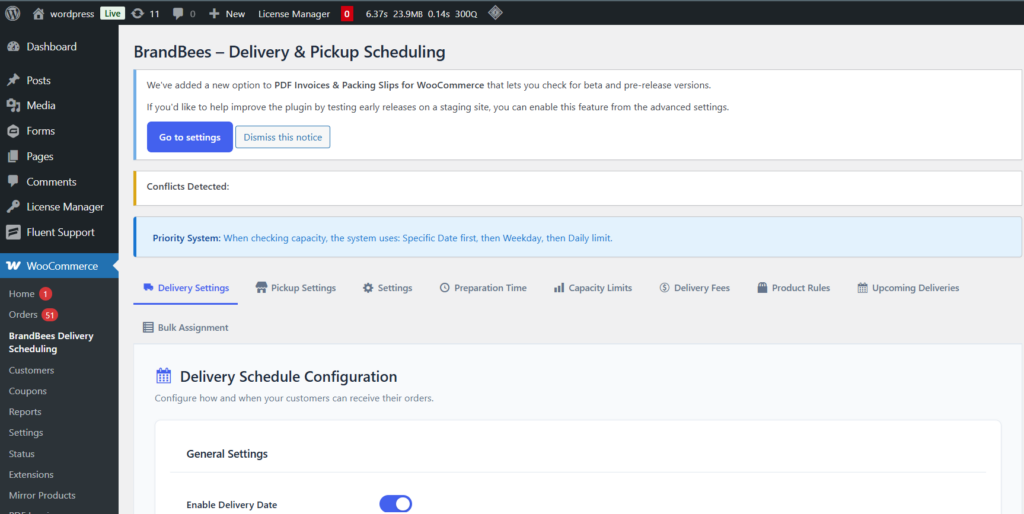
In the WordPress admin, go to WooCommerce → BrandBees Delivery Scheduling. The page title is BrandBees – Delivery & Pickup Scheduling.
Use the top row of tabs to switch between Delivery, Pickup, Settings, and (with Pro) the additional Pro tabs. Some tabs contain inner sub-tabs (a second row), especially Settings.
Base plugin tabs (overview)

Delivery Settings
- Enable delivery, lead times, and delivery days.
- Configure recurring time slots (weekdays) and, with Pro, specific date slots (see section 12).
- Save delivery settings with the provided save control so slots sync with fees and rules.
Pickup Settings
- Separate pickup schedule and options where your store uses pickup.
Settings (free sub-tabs)
- Cutoff Time — last order time for same-day / cutoff behaviour (uses your configured timezone).
- Holiday Manager — block dates so no slots are offered.
- Custom Labels — text for checkout strings (delivery date, time slot, errors, etc.).
- Estimated Delivery — messaging for earliest / estimated delivery display.
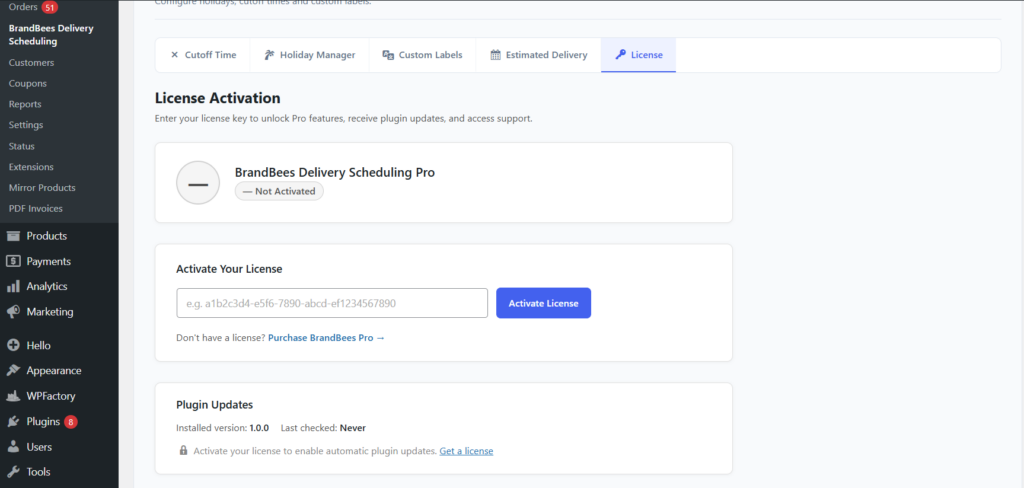
License (Settings sub-tab)

Open Settings, then the License sub-tab (network icon). Here you can:
- Enter your license key and activate Pro.
- See status: Active, Expired, Invalid, Limit Reached, or Not Activated.
- View masked key, expiry, and last verification time where applicable.
- Deactivate or refresh validation according to the buttons shown on screen.
Until the license is valid, premium tabs and hooks may not register — use this screen first when troubleshooting missing Pro features.
Preparation Time (Pro tab)

Purpose: Define how long orders need to be prepared before they can be scheduled for delivery, with overrides per category and product.
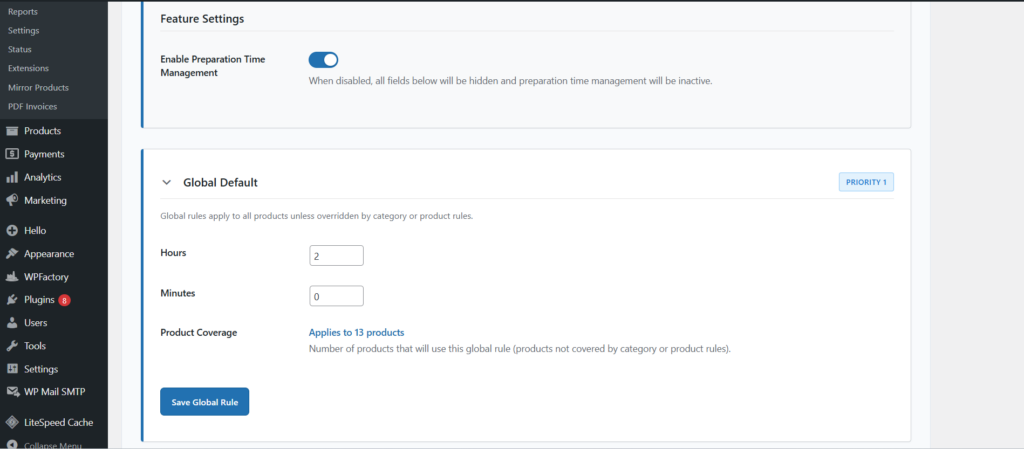
Enable Preparation Time Management — master switch; when off, the rest of the tab is hidden and prep rules are inactive.
Priority (highest wins): Product → Category → Global default.
Sections (collapsible panels)
- Global Default — hours and minutes applied to all products unless overridden.
- Category Rules — one or more rules targeting product categories; drag to set priority (higher priority rules win).
- Product Rules — rules for individual products; same priority idea as categories.
Use Add / Save / Delete actions in the UI for each rule. Category and product selectors typically use search / multi-select (SelectWoo).
Capacity Limits (Pro tab)

Purpose: Limit how many deliveries can be accepted per calendar day, with optional weekday and single-date overrides. Works with slot-level capacity from the free plugin.
Enable Advanced Capacity Limits — master switch.
Priority when checking a date: Specific date override → Weekday limit → Daily global limit.
Panels
- Daily Capacity — max deliveries per day across all slots (optional; leave empty for no daily cap).
- Weekday Capacity — per weekday caps and enable/disable each weekday.
- Specific Date Overrides — pick dates on a calendar and set capacity for those days only.
When date-level capacity is full, checkout may show no slots for that day even if individual slots still have spare capacity — behaviour depends on how date vs slot capacity is configured in Pro.
Delivery Fees (Pro tab)

Purpose: Charge delivery fees by order, category, product, and time-slot surcharges (slot fees follow charges set on slots in Delivery settings).
Enable Delivery Fees & Pricing — master switch; when off, fee rules are not calculated.
Global One-Time Fee
- Flat fee per order (unless excluded by a rule).
- Optional free delivery threshold — waive the global fee when order total reaches the threshold.
- Price rounding — optional rounding of the final delivery fee.
Time Slot Fees
Reference list of weekday and specific-date slots and their charges field; editing is done in Delivery Settings (slot charges), not in a separate grid here.
Category Fees & Product Fees
- Add rules: pick categories or products, set fee amount.
- Exclude from global fee — where offered, excludes those items from the global one-time fee.
- Product rules typically override or stack according to the pricing engine (see on-screen descriptions when saving).
Product Rules (Pro tab)

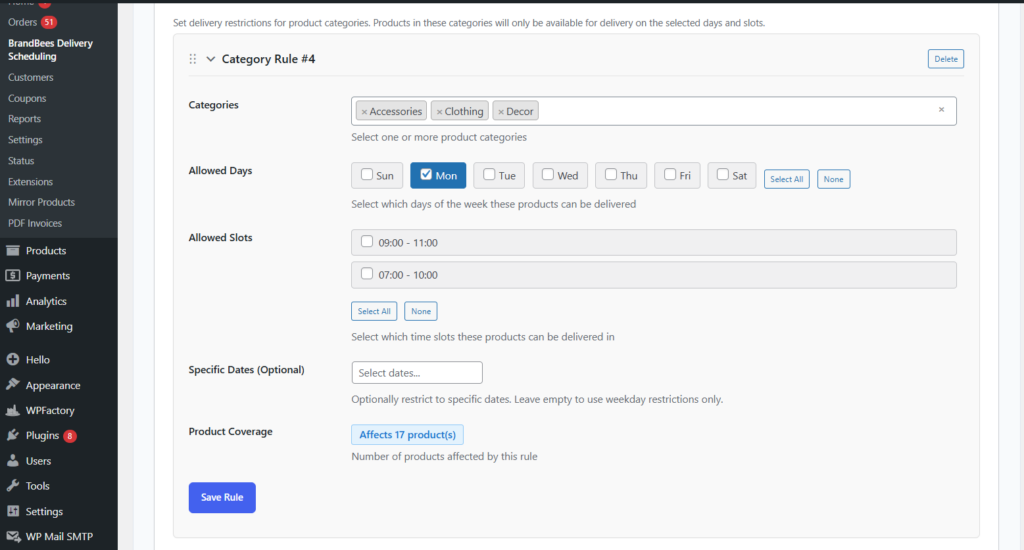
Purpose: Restrict which days of the week and time slots certain categories or products may use. If the cart mixes products with no common slot, checkout can be blocked.
Enable Product Delivery Rules — master switch.
Category Rules
- Select categories, allowed weekdays, allowed slots (from your configured schedule).
- Optional specific dates to narrow the rule further.
- Product coverage count helps verify how many products are affected.
Product Rules
- Same idea for individual products; product rules override category rules for those products.
Conflict Preview Tool
Test combinations of products to see whether the cart would have a valid shared delivery window.
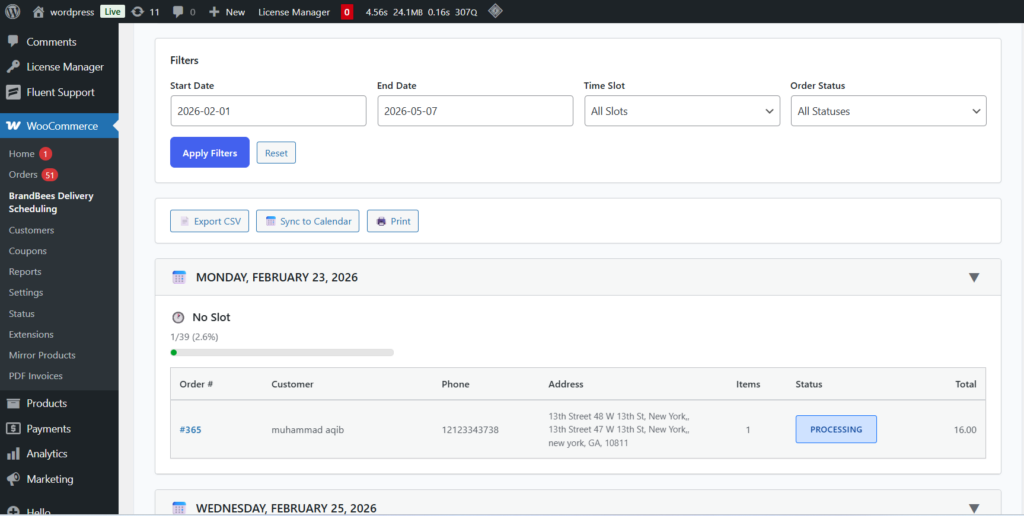
Upcoming Deliveries (Pro tab)

Purpose: Operational dashboard of scheduled deliveries with filters and exports.
- Filters: date range, time slot, order status (as provided in the UI).
- Table: orders with delivery date, slot, customer, and capacity indicators where shown.
- Export: CSV and ICS (calendar) export actions — use the buttons provided on the screen.
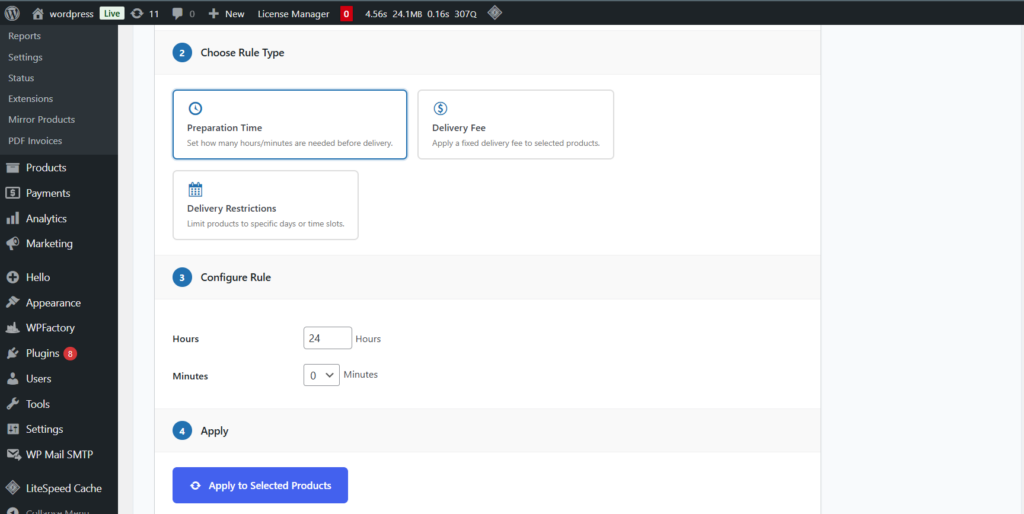
Bulk Assignment (Pro tab)
Purpose: Apply preparation time, delivery fee, or delivery restriction rules to many products at once (by product selection or whole category).
- Saved Templates — save a configuration to reuse; load, update, or delete templates.
- Add Bulk Rule — opens the wizard: choose scope (products/category), rule type, and values, then apply.
This complements the single-rule editors in Preparation Time, Delivery Fees, and Product Rules.
Delivery tab — Pro features

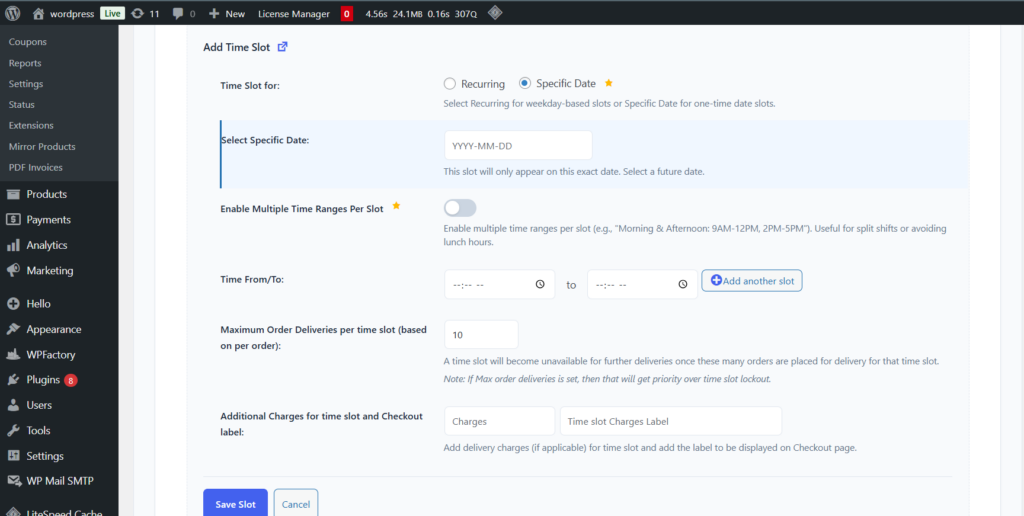
On Delivery Settings, Pro unlocks Specific Date Slots: add one-off dates with their own time ranges, capacities, charges, and labels (for example peak days or events). These are stored in the plugin’s time-slot storage and appear in pricing and slot fee references.
Use Add / Edit / Delete and save the delivery settings so changes persist.
Settings — sub-tabs (free + Pro)
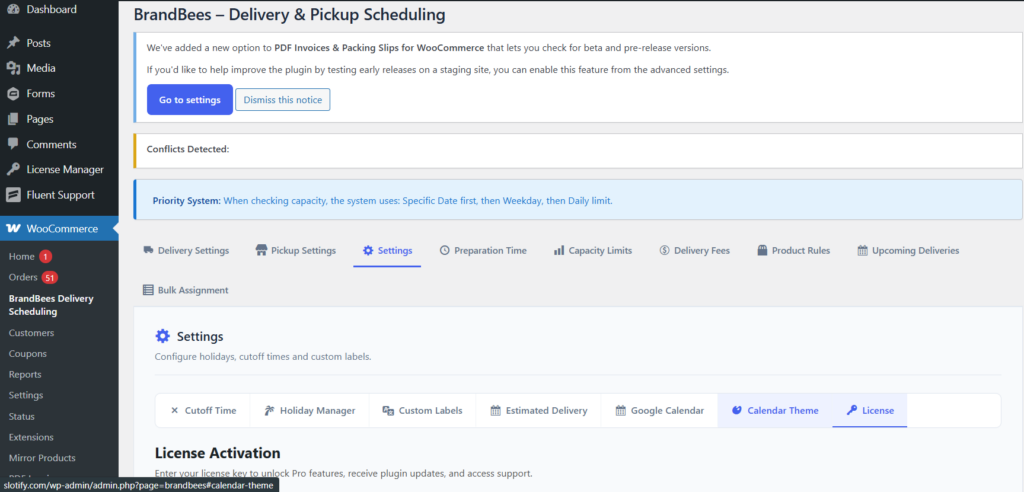
Inside Settings, the first row of sub-tabs includes the free areas (Cutoff, Holidays, Labels, Estimated Delivery) plus Pro additions:
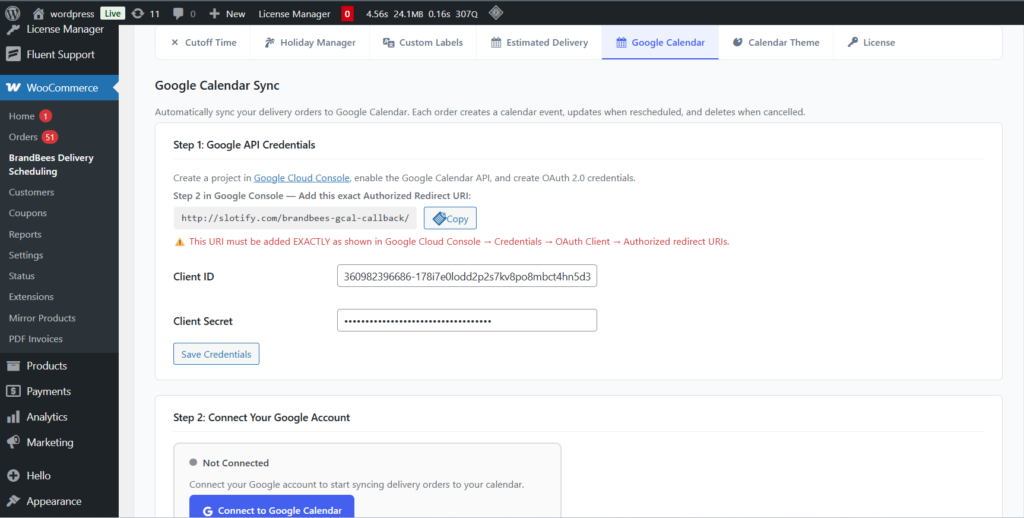
- Google Calendar — see section 13.
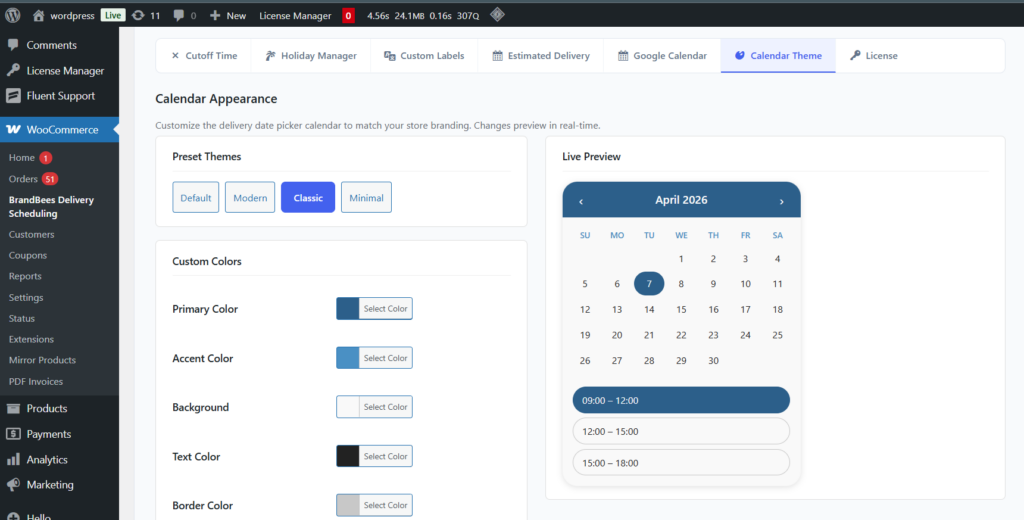
- Calendar Appearance — see section 14.
- License — see section 4.
If your site shows an extra Preparation Time row under Settings, that is controlled by the theme/plugin filter brandbees_show_preparation_time_tab; the full Pro experience for prep time is normally under the main Preparation Time top tab.
Google Calendar Sync (Settings sub-tab)

Purpose: Create and update Google Calendar events when orders get a delivery slot, when they are rescheduled, or when relevant status changes (per options on screen).
Typical setup steps
- Create OAuth credentials in Google Cloud Console; enable Google Calendar API.
- Copy the plugin’s Authorized Redirect URI into the Google OAuth client — it must match exactly.
- Paste Client ID and Client Secret, save, then connect / authorize Google.
- Choose target calendar (often “primary” or a named calendar from the list).
- Configure when to sync: new order, reschedule, cancel — according to the checkboxes shown.
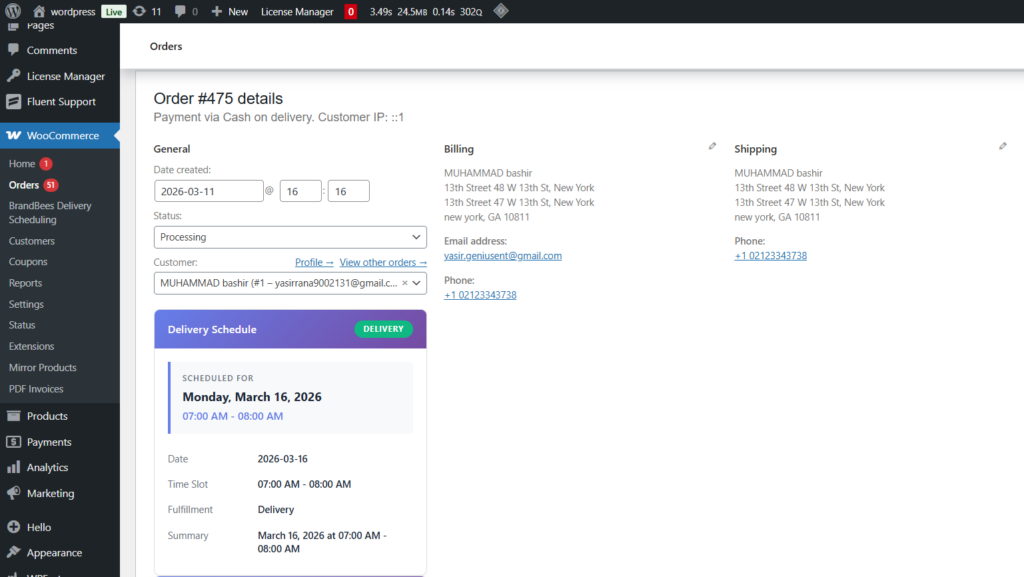
After connection, a link may appear on WooCommerce order screens to open the related calendar event where implemented.
Calendar Appearance (Settings sub-tab)

Purpose: Style the customer-facing date picker to match your brand.
- Preset themes — Default, Modern, Classic, Minimal.
- Colors — primary, accent, background, text, border.
- Font — inherit from theme or pick from listed Google fonts.
- Corner radius and shadow options.
- Live preview on the page; Save and Reset actions as provided.
Storefront and order tools (Pro)

These features are not all on one tab but are part of Pro behaviour:
- Cart / checkout conflict notices — if product rules leave no valid shared slot, the customer sees a notice on cart and checkout until the cart is fixed.
- Customer reschedule — when enabled in options, eligible customers can request a new slot from My Account → Orders → View order (AJAX slot picker).
- Admin reschedule — on the WooCommerce order edit screen (classic and HPOS-compatible), staff can pick a new date/slot for the order.
- Emails — reschedule notifications for customer and admin where configured in WooCommerce email settings.
- Delivery fee at checkout — fees from the Pro pricing engine appear in the order totals when the feature is enabled and rules apply.